GOOGLE TV · WINDOWS REMOTE
Help on the
big screen.
A test build for Google TV Streamer and Android TV. The same APK supports 32-bit ARM and 64-bit ARM. Android selects the right version automatically.
Download TV test APK ↓Installs over Remote Ranger / FoldLink with the same signing key. Tested on Chromecast with Google TV HD; other models still need compatibility testing.
Start on your TV
- Transfer the downloaded APK to your TV and open it with a file manager. Allow installation from that file manager when Android asks.
- Open Remote Ranger in the TV Apps launcher. Choose Share this TV.
- Enable Remote Ranger in the TV's Accessibility settings. If Android blocks a downloaded app, check its App info menu for Allow restricted settings, if offered.
- Choose Show my connection code and approve screen sharing using the physical remote.
- Your helper opens Remote Ranger for Windows, chooses Google TV / Fire TV, and enters those nine digits. The browser TV test controller also remains available. The phone controller uses separate sessions.
Install the Windows remote
Download Windows app · 0.1.9 Installation notes
- Download and extract the entire ZIP on your Windows x64 computer. Open Remote Ranger.exe inside the extracted folder. Keep its supporting files together.
- If needed, install Microsoft's WebView2 Runtime. This is an unsigned test build; install only a download you trust.
- Use Controller access to enter your existing private helper key if this computer has not been configured. Keys are not included in public downloads.
- Connect using the TV's approved nine-digit sharing code. Select D-pad to show the floating handset or Full screen for the picture with controls on top.
Use the Google TV handset
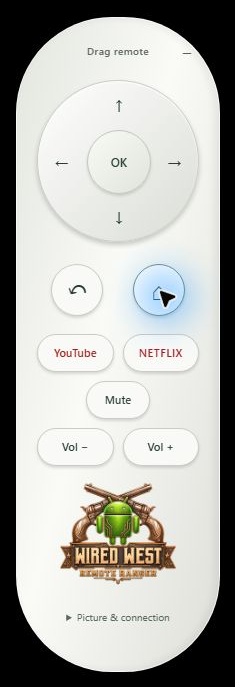
The Google TV handset replaces the square floating controller when a Google TV is connected. Move it using the centered Drag remote label. Directions, OK, Back and Home navigate menus. YouTube and Netflix open the installed TV apps. Unavailable advertised controls stay greyed out.
Mute and volume: these commands use the TV or streaming device's configured Android audio route. Configure supported digital volume or HDMI-CEC volume control on the TV and streaming device. A computer cannot send the infrared commands from your physical remote. Kitchen Chromecast received all three sound commands during testing, but its HDMI volume control was disabled, so a change in physical sound was not verified.
Mouse, picture and full screen
In the Windows app, click an accessible item in the picture to select it, use the mouse wheel to navigate, or use the handset. Some TV apps expose only directional navigation. Full screen keeps the remote above the picture and shows yellow outlined device, FPS, response-time, connection and zoom information in the upper-left corner. F11 toggles full screen; Escape exits it.
The browser controller retains its TV controls pill: click the picture for OK, drag or use the wheel for directions, and use arrow keys and Enter after focusing the picture. TV menu / Settings opens system Settings. D-pad accessibility actions require Android 13 or later and firmware support; unavailable controls are disabled.
Keep sharing
Press Home to leave setup while approved sharing stays active. The app keeps the display awake and retries brief network failures for up to four minutes. Controls pause while disconnected. Either person can Stop.
A reboot, force stop or revoked screen capture needs new approval. Protected streaming content may remain black; Home and Back remain outside the picture.
Testing and compatibility
Verified on Kitchen Chromecast HD: sharing, Home, YouTube and Netflix launch; Windows fullscreen handset and performance overlay. Mute and both volume commands reached Android. App sign-in, physical sound changes and other models are not guaranteed by those tests.
Use only the physical remote for setup. Check directional focus, OK, Home, Back, volume and TV Settings. Leave sharing idle for 20 minutes, briefly disconnect Wi-Fi, and test Stop from both ends. Confirm that a reboot requires fresh approval.
This is an experimental test build. Device firmware can restrict screen capture or control; installation alone does not confirm compatibility.