
Built by Wired West · Powered by Splashtop
Your computers.
One assistant.
A leap forward in automated customer technical support.
Describe what needs fixing. Wired West AI Remote finds the right computer, investigates the issue, and works through the task—keeping you informed from the first connection to the final report.

The request and the return journey
From your screen to theirs. Then back to you.
A simple view of how the request travels. The dedicated Wired West host handles the remote work while you follow along from your own device.
REQUEST → REMOTE ACTION
- 01
Your phone or computer
Sign in. Name the computer and describe the problem.
- 02
AI Remote workspace
Your request becomes a task in the queue.
- 03
Wired West assistant
Interprets the request and finds the right computer.
- 04
Splashtop connection
Opens the authorized remote session.
- 05
Customer’s computer
Inspects the desktop, performs the task, and checks the result.
RESULT → REPORT → YOU
- 01
Session findings
Actions taken, checks performed, and any unresolved issues.
- 02
Session report
A recap of the outcome, time spent, and desktop cleanup.
- 03
Back to you
Read the task history, receive an enabled browser alert, or get a configured email report.
A look inside
A support desk that fits in your hand.
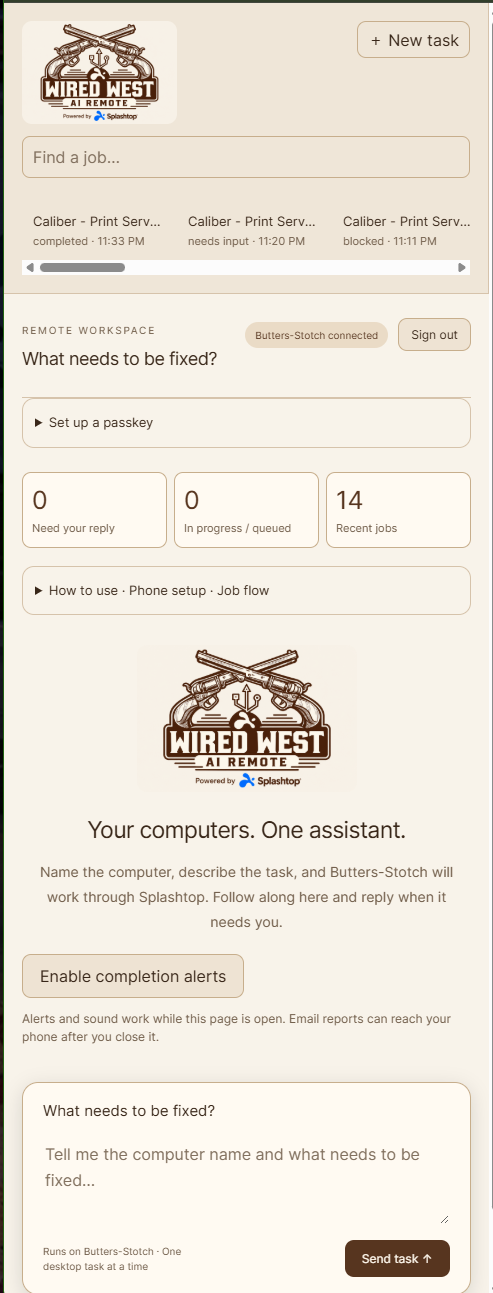
Launch a request from your phone, follow the activity from a computer, and respond when the assistant needs a detail. The workspace brings tasks, questions, progress, and results together.
- Printing and everyday Windows troubleshooting
- File-sync investigations and software setup
- Remote inspection and requested maintenance
- Clear session history and completion reports
Built to reduce repetitive support work and help customers get back to business, with Wired West available when an issue needs further attention.
The capture shown here is the current interface. Feature panels below are illustrative mockups with sample data; layout and results vary by device and task.
01 / Your support session
Secure access. A familiar sign-in.
Open the support workspace from an internet-connected phone or computer. Sign in with a username and password, or register a passkey for faster access.
Compatible devices can verify a passkey with a fingerprint, face recognition, device PIN, or security key. Your device handles that verification.
Secure accessILLUSTRATIVE VIEWWelcome back.
Your computers. One assistant.
Your device handles the verification.
02 / Your support session
Tell it what needs fixing. In your own words.
Put the computer name and the problem in the same message. The assistant interprets the request, identifies the intended outcome, and works through the relevant troubleshooting steps.
Everyday descriptions are welcome: “The office computer is not syncing files” or “Check why the front desk cannot print.” If important details are missing, it asks.
Start a taskILLUSTRATIVE VIEWWhat needs to be fixed?
No separate computer selection required.
03 / Your support session
Find the computer. Confirm the match.
The assistant searches the available remote computers for the name you gave and verifies the target before making changes. Similar names and unclear matches become questions for you to resolve.
Follow-up replies stay attached to the current task and its verified computer. Start a new task to work on a different machine.
Find the right computerILLUSTRATIVE VIEWConfirm the remote session belongs to the requested computer.
More than one likely match? Ask which one you mean.
04 / Your support session
Smart organization for a busy support day.
See what needs your reply, what is running or queued, and your recent jobs at a glance. Status filters bring the relevant work into view; search finds jobs by computer, request text, or status.
Submit additional requests while work is underway. The queue runs one desktop task at a time, keeping sessions and their histories separate.
Your support work, organizedILLUSTRATIVE VIEWOne desktop task at a time. Each request keeps its own history.
05 / Your support session
The right question at the right moment.
When the assistant needs a missing detail or a decision, it pauses and asks within the task. You can answer from the same phone or browser you used to start the request.
That conversation helps resolve ambiguous instructions and keeps you involved when the next step depends on your input. A blocked task is reported clearly.
A conversation that keeps movingILLUSTRATIVE VIEWThe assistant continues with the clarified request.
06 / Your support session
Watch progress without watching the desktop.
A running log explains what the assistant is doing, with an activity heartbeat and elapsed time. The log follows new updates automatically, while letting you scroll back to review earlier steps.
Connection and waiting states make it easier to distinguish ongoing work from a task that needs your reply.
Live activityILLUSTRATIVE VIEW- Requested computer verified.
- Connected to the remote desktop.
- Inspecting the selected printer queue.
- Checking the result of the repair.
Scroll back to review earlier steps, then jump to the latest update.
07 / Your support session
Know what happened—and how it turned out.
Each session ends with a recap of the work, the outcome, and the time spent. Configured email reports carry that summary to your inbox, and task history keeps the details available for review.
Enable completion alerts for browser notifications and sound while the page is open. Email reports can reach you after you close the page. Unresolved issues are included in the result.
Session completeILLUSTRATIVE VIEWFront desk printing
What was done
Inspected the printer queue and addressed the stuck job.
Result
Printing was checked after the repair.
Desktop
Temporary support windows closed; original work preserved.
08 / Your support session
Respect the workspace. Keep the fix.
The assistant observes the starting desktop, works to close the extra windows it opened, preserves pre-existing windows and unsaved work, and disconnects after finishing.
Restoration is best-effort: repairs, reboots, and application behavior can change the view. The session report records what was restored and any remaining differences.
Leave the workspace readyILLUSTRATIVE VIEWYour workspace
▣ Customer document▣ Existing browserYour workspace
▣ Customer document▣ Existing browserKeep the requested fix. Preserve existing work. Report anything that could not be restored.
The next step in customer support
Less repetitive work.
More time moving forward.
Bring everyday computer problems into one clear conversation. Ask Wired West how AI Remote can support your computers and your team.